
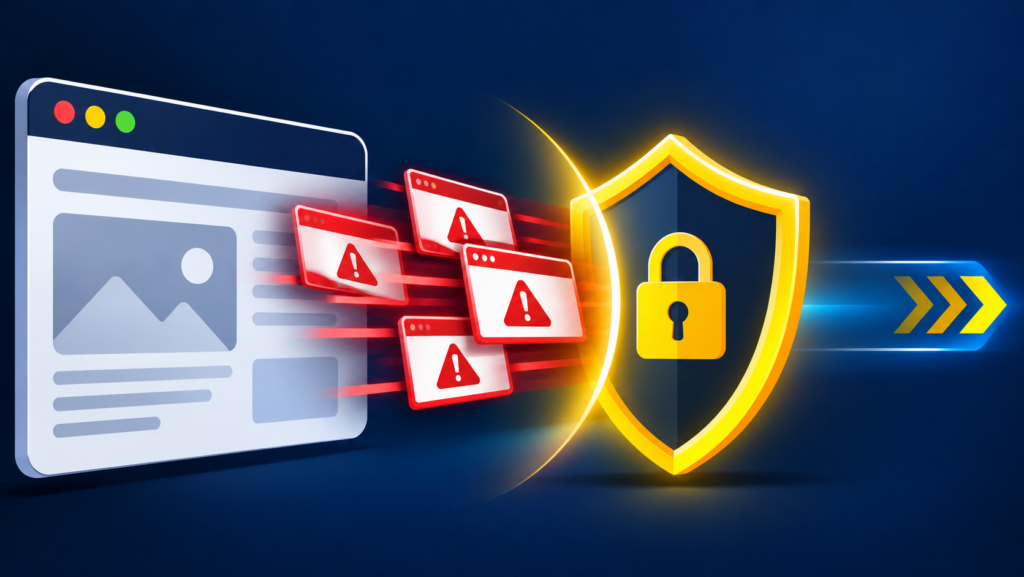
Quick answer: Scareware Blocker is a Microsoft Edge feature that uses an on-device machine learning model to spot full-screen fake virus alerts and tech-support scams. Microsoft said on 2 November 2026 that user reports showed many scams begin with a website notification, so Edge 156 now disables notifications from a site when SmartScreen or Scareware Blocker detects a scam sent through it. You can also pick Block and report on a notification request.
Fake virus warnings still catch many people out. Here is how the blocker works, what Microsoft learned from reports and what you can do today to stop notification spam.
What Scareware Blocker does
Scareware pages try to convince you that your computer is infected, often with a full-screen warning, loud audio and a phone number to call. Edge Scareware Blocker uses a machine learning model that runs locally to recognise these signs. Microsoft says the model does not save or send images to the cloud. Make Tech Easier describes the checks as looking at full-screen pop-ups, forced audio and attempts to stop you closing the tab, and reports it is now on by default on devices with at least 2 GB of RAM and a 4-core CPU.
If the page scores as scareware, Edge exits full-screen, stops audio and lets you choose to close the page. You can always close a full-screen scam page by pressing and holding the Esc key, Microsoft notes.
What Microsoft found in 2026
In a post dated 2 November 2026, Microsoft security researchers said that when they reviewed Scareware Blocker reports, many scams started with a website notification. The feature has been on by default on qualifying PCs for just over a year and protects tens of thousands of users a day, according to Microsoft.
Notification abuse often begins with a page that asks you to click Allow to prove you are not a robot. Once you say yes, the site can send fake alerts even after you close the page.
New protections in Edge
| Protection | What it does |
|---|---|
| Automatic notification blocking | Since the Edge 156 rollout, if SmartScreen or Scareware Blocker detects a scam sent through a notification, Edge disables notifications from that site. |
| Block and report | On a notification permission prompt, open the menu next to Block and choose Block and report to send the page to SmartScreen before any abuse starts. |
| Per-notification control | Use the three-dot menu on a notification to disable future notifications from that site. |
| Blocked list | Edge settings list blocked notification sites and let you unblock one if it was a mistake. |
Microsoft stresses this is tied to detected scams and is not a guarantee that every deceptive site is stopped.
How to turn it on and check it
- Open Edge, then Settings, then Privacy, search, and services.
- Scroll to Security and find Scareware blocker. Turn it on if it is off.
- To help improve detection, you can enable the option to share detected scam sites with Microsoft Defender SmartScreen. This is optional.
- Keep Edge updated, since new protections arrive with new versions.
Menu names can change between versions, so use the settings search box if you cannot find it.
How to clean up notification spam
- Go to Settings, then Cookies and site permissions, then Notifications.
- Review the Allow list and remove any site you do not recognise.
- Set Edge to ask before sites can send notifications, or block them all if you do not use them.
- If you already called a number or installed software from a fake alert, disconnect from the internet, run a Microsoft Defender scan and change passwords from a clean device.
Spotting scareware quickly
- Real security software does not ask you to call a phone number shown in a browser.
- Microsoft does not show a Windows warning with a support number inside a web page.
- A page that blocks the Close button or plays an alarm is a scam.
- Do not click anything on the page. Hold Esc or close the tab from the task manager.
For more help, see our guide to Edge shopping tools and our free security tools.
Frequently asked questions
What is Edge Scareware Blocker?
A built-in feature that uses an on-device machine learning model to spot fake virus and tech-support scam pages.
Does it send my screen to Microsoft?
Microsoft says the model runs locally and does not save or send images to the cloud. Sharing detected sites with SmartScreen is optional.
What is Block and report?
An option on a notification permission prompt that blocks the site and reports it to Microsoft SmartScreen.
How do I close a full-screen scam page?
Press and hold the Esc key.
Is it on by default?
Yes on qualifying PCs, according to Microsoft and Make Tech Easier. Check your settings to be sure.
Sources
- Windows Experience Blog (via Eleven Forum): how Scareware blocker uncovered notification abuse
- Microsoft Edge Blog: client-side threat detection
- Microsoft Edge Blog: stand up to scareware
- Make Tech Easier: Scareware Blocker enabled by default
- Cyber Security News: Edge notification protection
- Microsoft Support: scareware blocker
Last checked: 15 November 2026. Edge menus change between versions. Use the settings search if a name differs.